
Custom RSVP questions
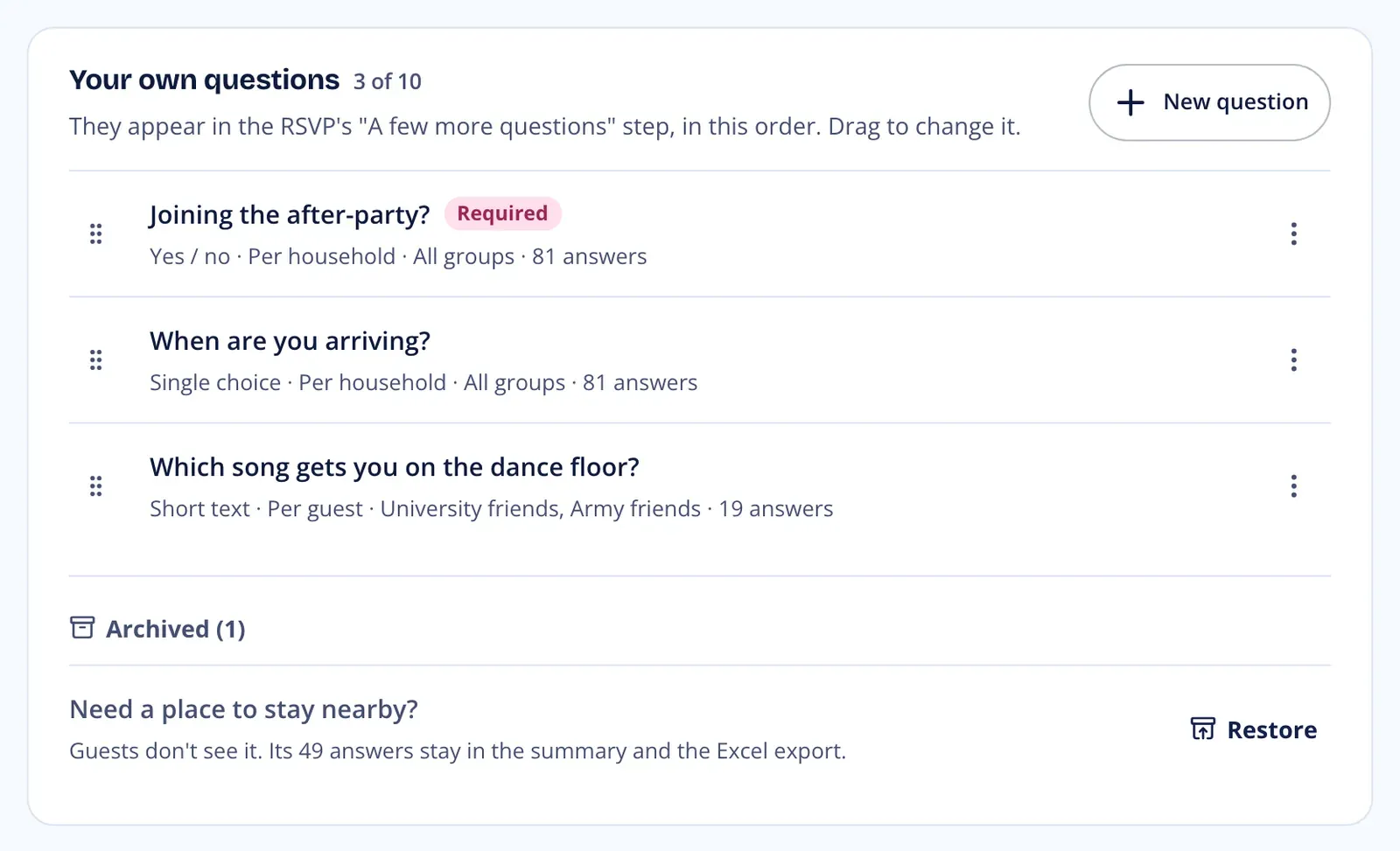
Ask guests what you need to know beyond the meal: whether they’re joining the after-party, when they’re arriving, which song gets them dancing. Your questions appear in the RSVP after the meal step, and the answers are collected for you in one place.
Open Settings > RSVP form and find the Your own questions card. From the Question answers page you can also get there with Edit questions.
Add a question
Section titled “Add a question”Click New question. You can have up to 10 questions per event. The count next to the title shows how many you have, for example 3 of 10.
When Shuttles are on, the RSVP also asks the built-in ride question, marked Built-in. It counts toward the 10. You can choose which groups are asked, and it goes away when you turn shuttles off.
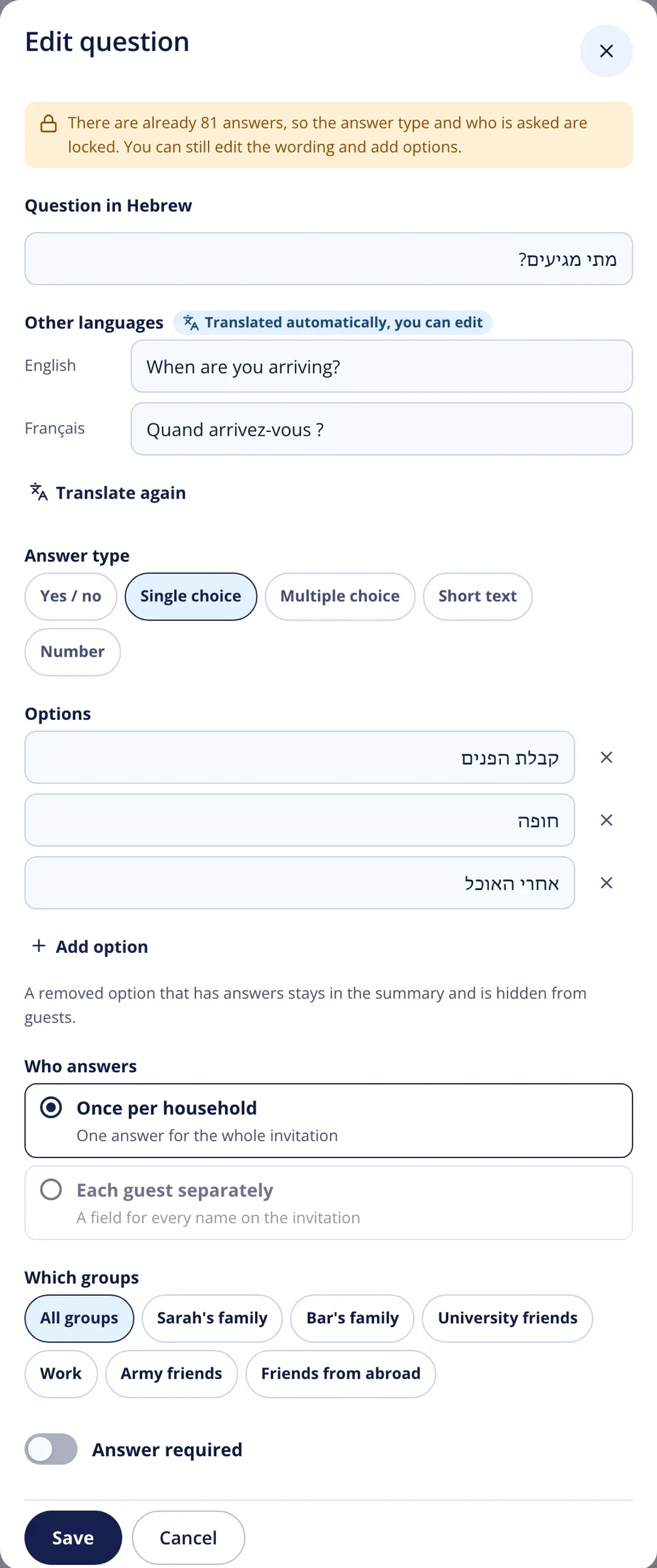
- Write the question in Question in Hebrew (up to 200 characters).
- Under Other languages, leave English and French empty to translate automatically, or type your own.
- Pick the Answer type: Yes / no, Single choice, Multiple choice, Short text or Number. Choice questions need at least 2 options. Add more with Add option.
- Under Who answers, choose Once per household (one answer for the whole invitation) or Each guest separately (a field for every name on the invitation).
- Under Which groups, keep All groups or pick the groups that should be asked. If the event has no groups yet, every guest is asked.
- Turn on Answer required if guests must answer before they continue.
- Click Save.
Translations
Section titled “Translations”Guests see each question in the language they use on your site. English and French are filled in automatically from the Hebrew, and you can always edit them. When you edit a question, Translate again refreshes both translations. If you change the Hebrew, the editor reminds you to translate again.
Order, edit and remove
Section titled “Order, edit and remove”Drag a question to change its order, or use Move up and Move down in its ⋮ menu. Guests see the questions in the same order.
Once a question has answers, its answer type and who answers are locked. You can still edit the wording and add options. If you remove an option that already has answers, it stays in the summary and is hidden from guests.
In the ⋮ menu, a question without answers has Delete. A question with answers has Archive instead: guests stop seeing it, and its answers stay in the summary and the Excel export. Archived questions are listed under Archived, and Restore puts one back on the form. Archived questions don’t count toward the 10, but to restore one you need a free spot.
What guests see
Section titled “What guests see”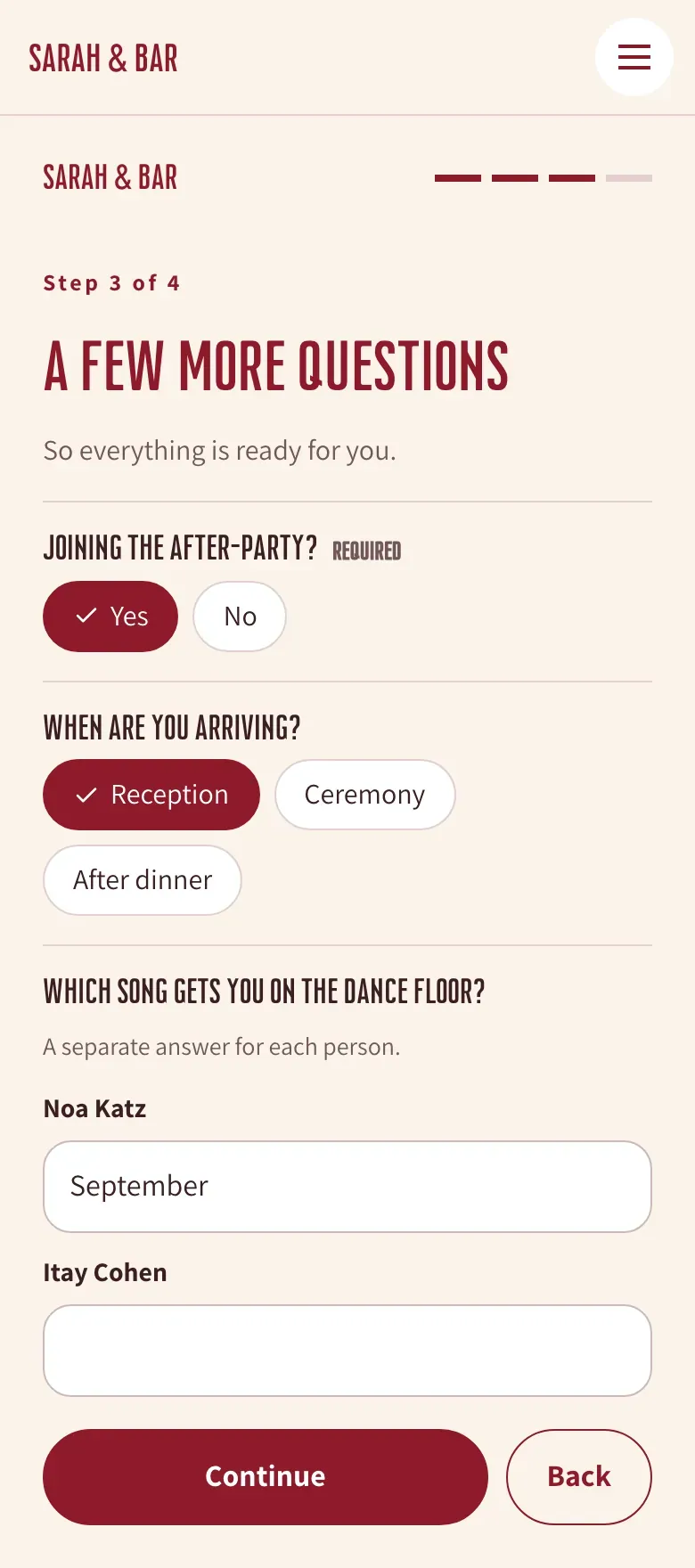
Guests who say they’re coming get a step called A few more questions, right after the meal step. Each guest is asked only the questions for their groups. A question asked of each guest separately shows one field per name, with the note A separate answer for each person. Short text answers can be up to 200 characters, and numbers are whole numbers from 0 to 999.
Required questions are marked Required, and guests can’t continue until they answer them.
See the answers
Section titled “See the answers”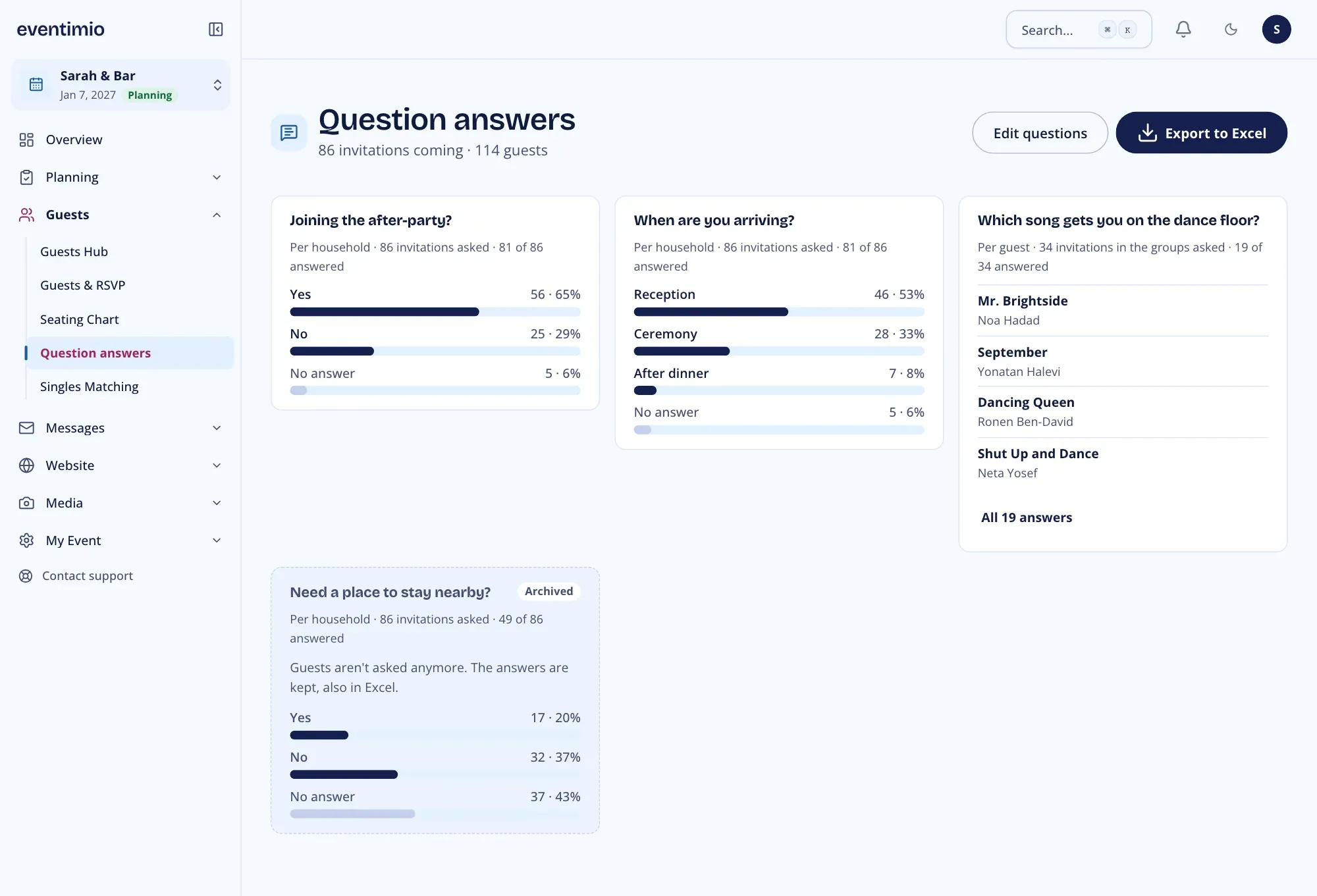
Open Guests > Question answers. The top shows how many invitations are coming and how many guests. Each question gets a card with who is asked, how many answered, and:
- For yes / no and choice questions: each answer with its count and percentage, plus No answer.
- For short text and number questions: the latest answers with the guest’s name, and All N answers to see the rest.
When Shuttles are on, a Shuttles card shows how many households asked for a ride, the seats, the cities most asked from and how many households are without a stop, with Go to shuttles.
Only invitations that said yes are counted. Archived questions are shown at the end, marked Archived. Export to Excel downloads the guests coming with their answers.
Answers on the guest list
Section titled “Answers on the guest list”On Guests > Guests & RSVP:
- Columns: in Settings (⋯ menu), Question columns lets you show or hide a column per question. A question asked of each guest separately shows how many of the people answered. Guests not asked show Not asked.
- Filter: each question has its own section in Filter, with its answers and No answer (or Answered and No answer for text and number questions).
- Export: Download guest list includes a column for each question, archived ones too. For questions asked of each guest separately, every person’s answer appears with their name.