
Event day
Event day keeps the money side of the day under control. Before the event you agree how many meals the venue guarantees, how far past that a coordinator can go alone, and which tables stay in reserve. On the day the coordinator runs everything from a phone: who came in, reserve tables, the schedule, cash and issues. The morning after, the report puts the guarantee, the check-ins and the venue’s bill side by side.
Open Event day in the sidebar, under Planning. Both plans include it.
Set up before the day
Section titled “Set up before the day”The setup page is for hosts, on a computer. Each card saves on its own.
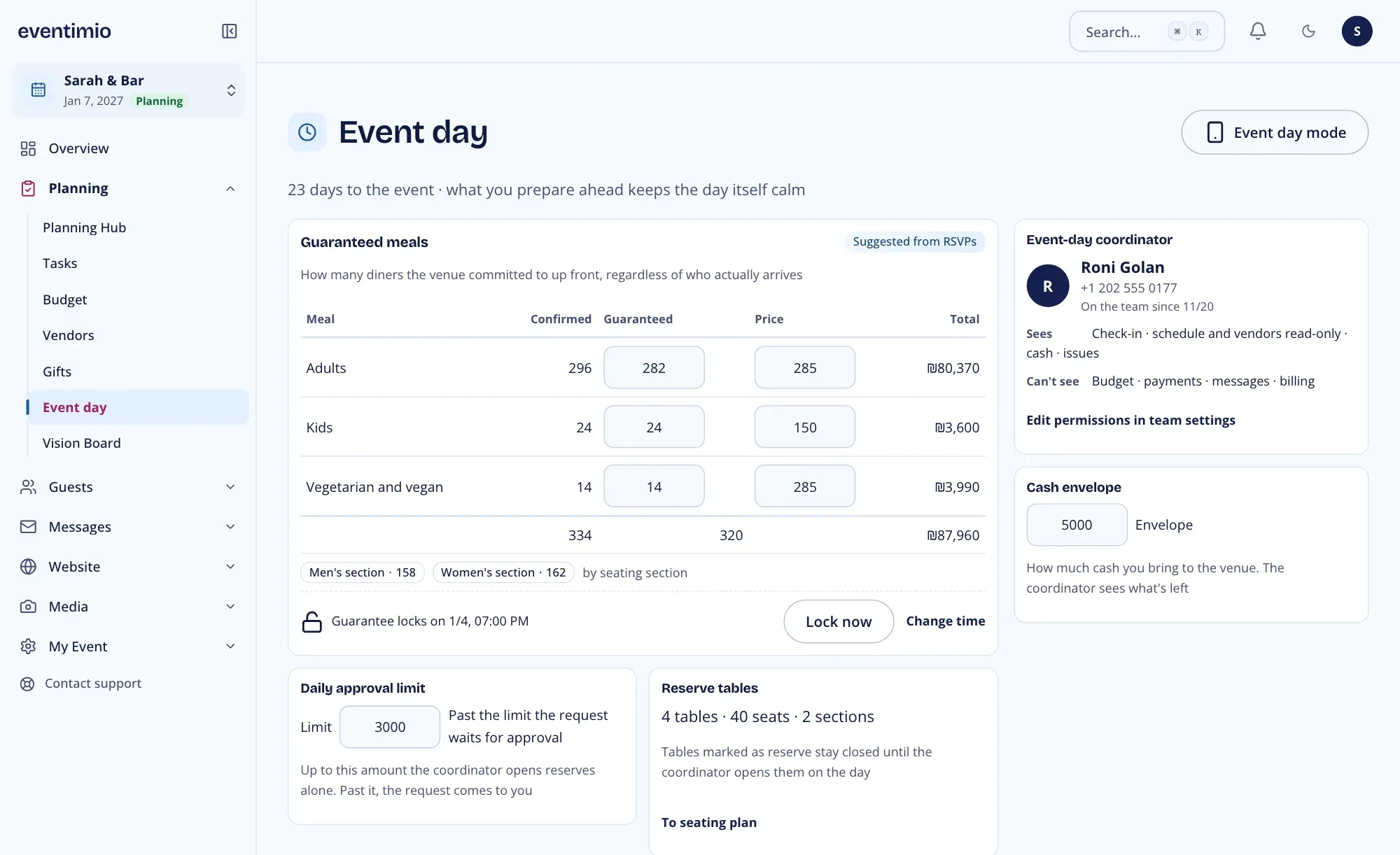
Guaranteed meals: the number of diners the venue committed to, per meal: Adults, Kids and Vegetarian and vegan, each with a price per meal. The first suggestion is the RSVP yes count minus about 4%, marked Suggested from RSVPs. Every row can be edited. Click Save meals, or Discard changes.
The guarantee locks by itself 72 hours before the event, as the line under the table says. Until then you can:
- Lock now, when the venue has the final numbers.
- Change time to pick another lock time, then Save time.
- Reopen until the event day to unlock a locked guarantee. After the event day starts it stays locked.
Daily approval limit: an amount in ₪ above the guarantee for the whole day. Up to it, the coordinator opens reserve tables alone. Past it, each request waits for a host’s approval.
Reserve tables: tables that stay closed until they are opened on the day. Mark them in Seating: open a table’s Settings and turn on Reserve table. The card shows how many tables and seats are in reserve, with To seating plan.
Cash envelope: how much cash you bring to the venue. On the day the coordinator sees what’s left of it.
Who approves on the day
Section titled “Who approves on the day”On the night the hosts (the couple, at a wedding) aren’t needed and have nothing to do. The Who approves on the day card decides what happens when a reserve table goes past the daily limit:
- All hosts: everyone with host access gets an in-app notification and an SMS. The first answer wins.
- One team member: only the person you pick gets the notification and the SMS, and the coordinator’s Call button rings them. Other hosts can still approve in the app. Someone without a phone number gets the request in the app only.
- The coordinator decides, no approval: a table past the limit opens right away, and the morning-after report marks it over the limit, no approval.
To pick a family member, first invite them to the team with host access in Settings > Team and permissions. If the person you picked leaves the team, requests go to all hosts again.
Invite a coordinator
Section titled “Invite a coordinator”The Event-day coordinator card shows who runs the day. With no coordinator yet, click Invite a coordinator, enter their email and send. The role is set to Event-day coordinator. You can also invite from Settings > Team and permissions and choose that role there.
The coordinator sees check-in, the schedule and vendors (view only), cash and issues. Their sidebar shows only Check-In and Event day, so the seating plan isn’t open to them. They see the reserve tables on the phone view. They don’t see the budget, payments, messages or billing. For them, Event day always opens the phone view. Edit permissions in team settings opens the team page.
Don’t have a coordinator? Looking for a coordinator? links to coordinators near the venue in the vendor directory.
On the day
Section titled “On the day”The phone view is Event day control. The coordinator gets it automatically. Hosts open it with Event day mode on the setup page, and on a phone it opens by itself on the event day. Five tabs run along the bottom: Today, Schedule, Cash, Issues and More.
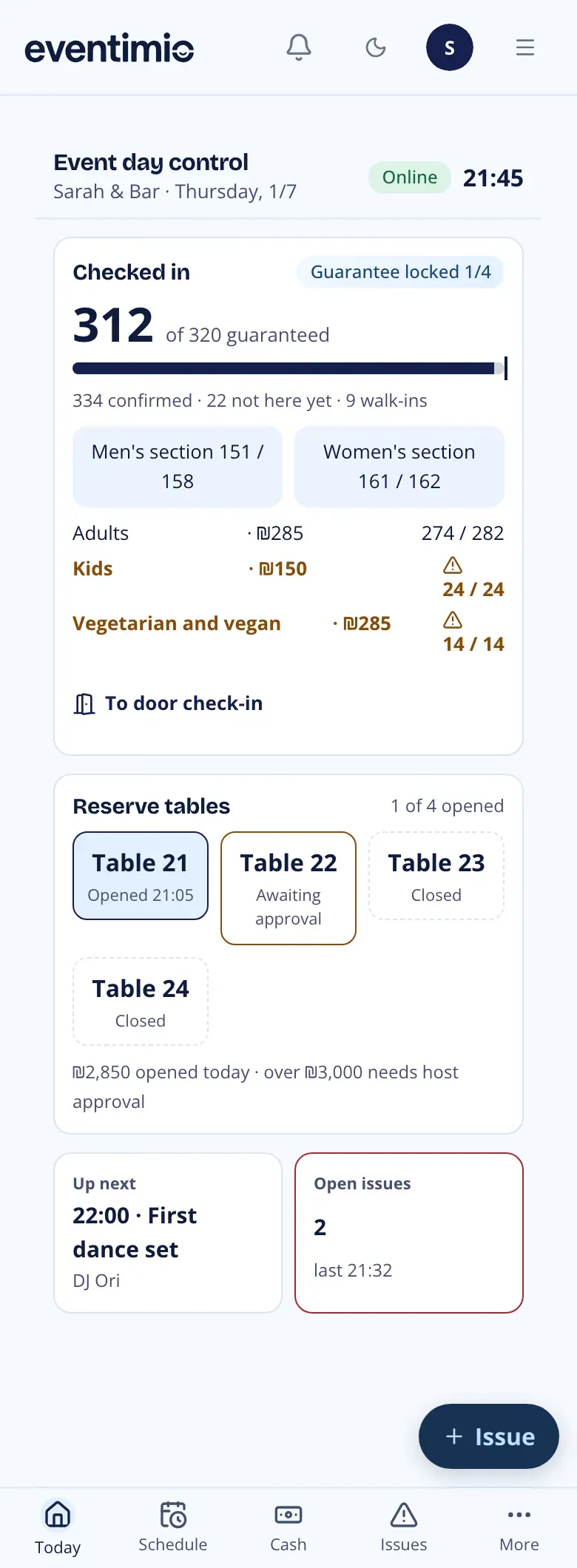
Today shows:
- How many checked in against the guarantee, with a progress bar, and how many confirmed, are not here yet and walked in. The numbers come from check-in, and To door check-in opens it.
- The count per seating section and per meal. A meal at or over its guarantee is marked.
- The reserve tables, each Closed, Opened with the time, or Awaiting approval.
- Up next on the schedule, and the Open issues.
Open a reserve table
Section titled “Open a reserve table”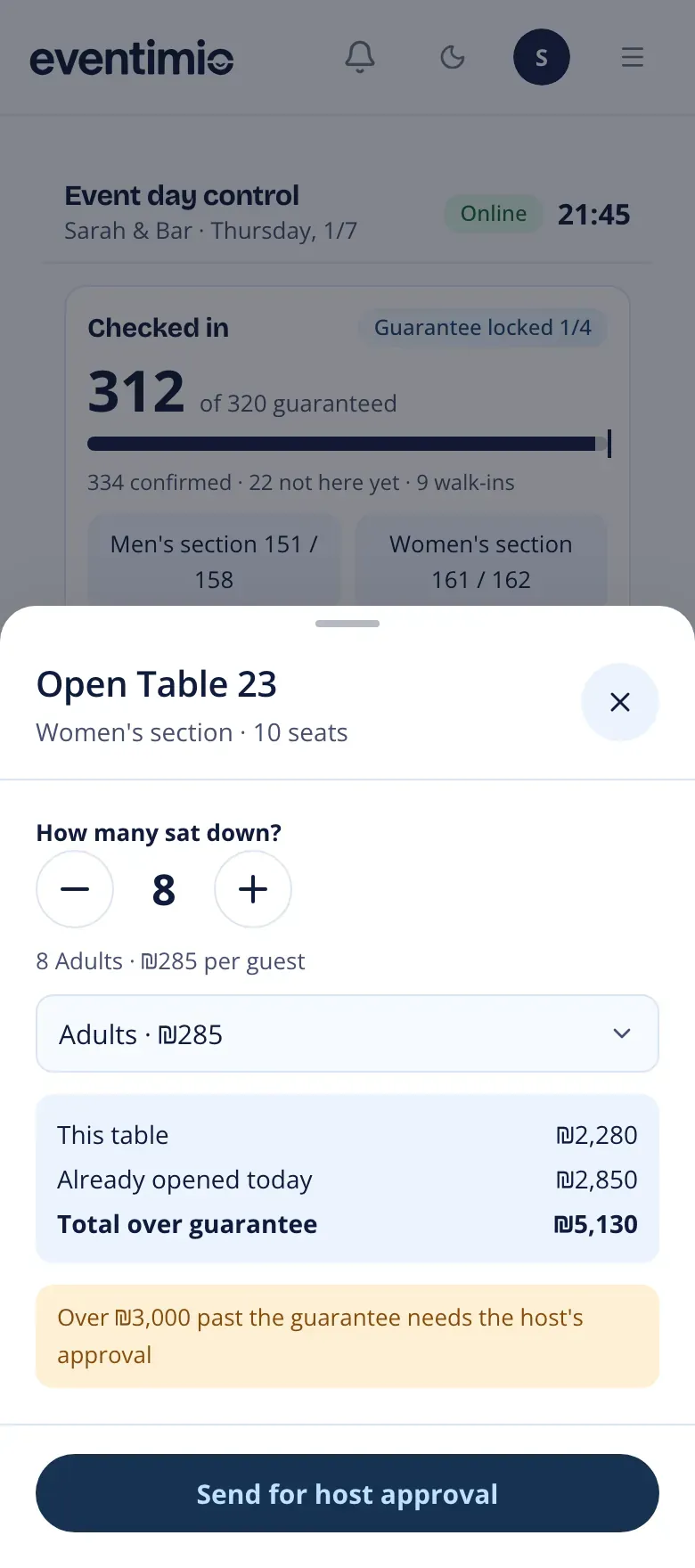
Tap a closed table, set How many sat down? and the meal. The sheet adds up This table, Already opened today and Total over guarantee.
- Within the daily limit, tap Open now and the table opens.
- Past the limit, tap Send for host approval. The hosts get an in-app notification and an SMS with a link. The first host to answer decides, and the coordinator gets the answer. While it waits, Cancel request takes it back, and Call the host is right there.
Schedule, cash and issues
Section titled “Schedule, cash and issues”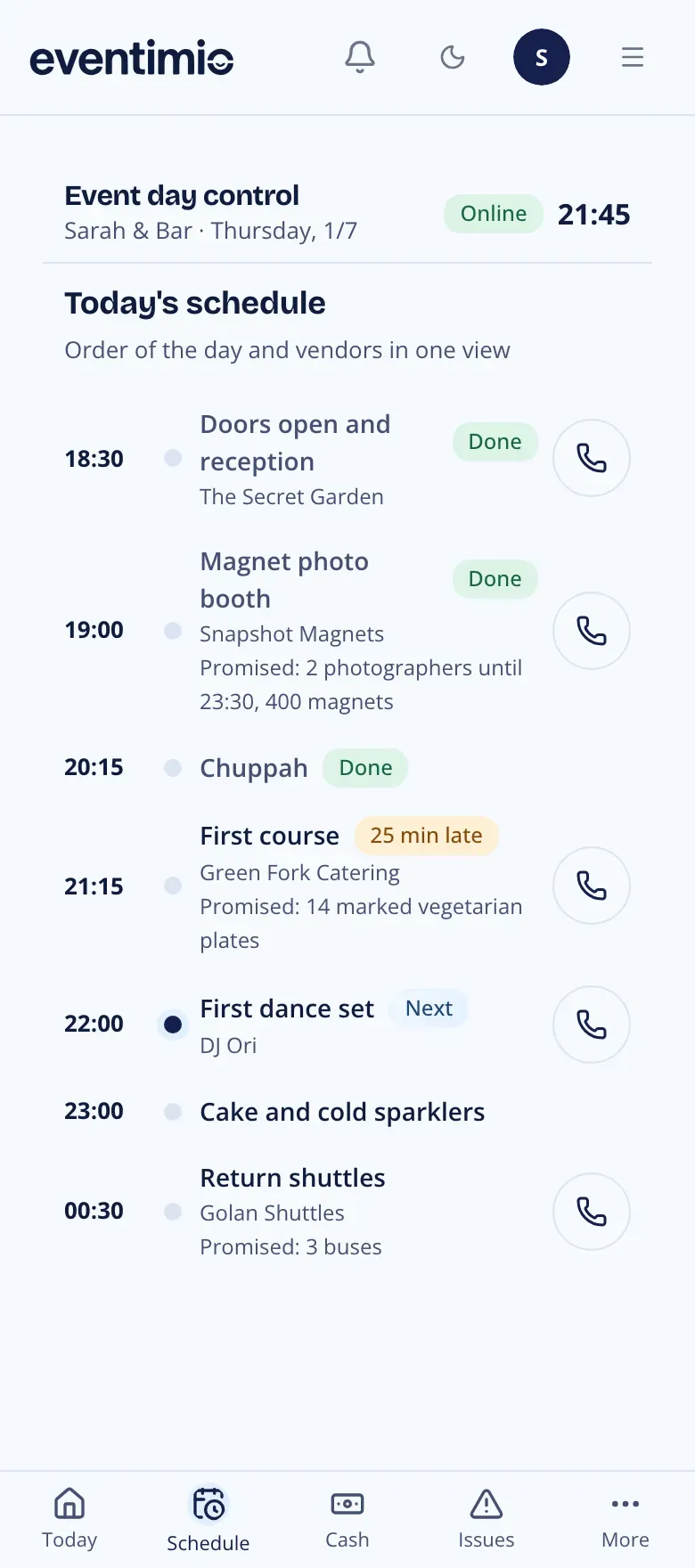
- Schedule merges the event’s Evening schedule (in Settings > Details and schedule) with the vendors’ Day-of timeline. Each item shows the time, the vendor, Promised: with what was promised, and a call button. Items are marked Done, Next or late by how many minutes. Fill in What was promised on a timeline entry on the Vendors page.
- Cash is a log of cash paid on the day: to whom, for what and how much, against the envelope. Add a payment with the Payment button.
- Issues lists what happened and who’s handling it. Add one with the Issue button, and tap Mark resolved when it’s done.
No signal
Section titled “No signal”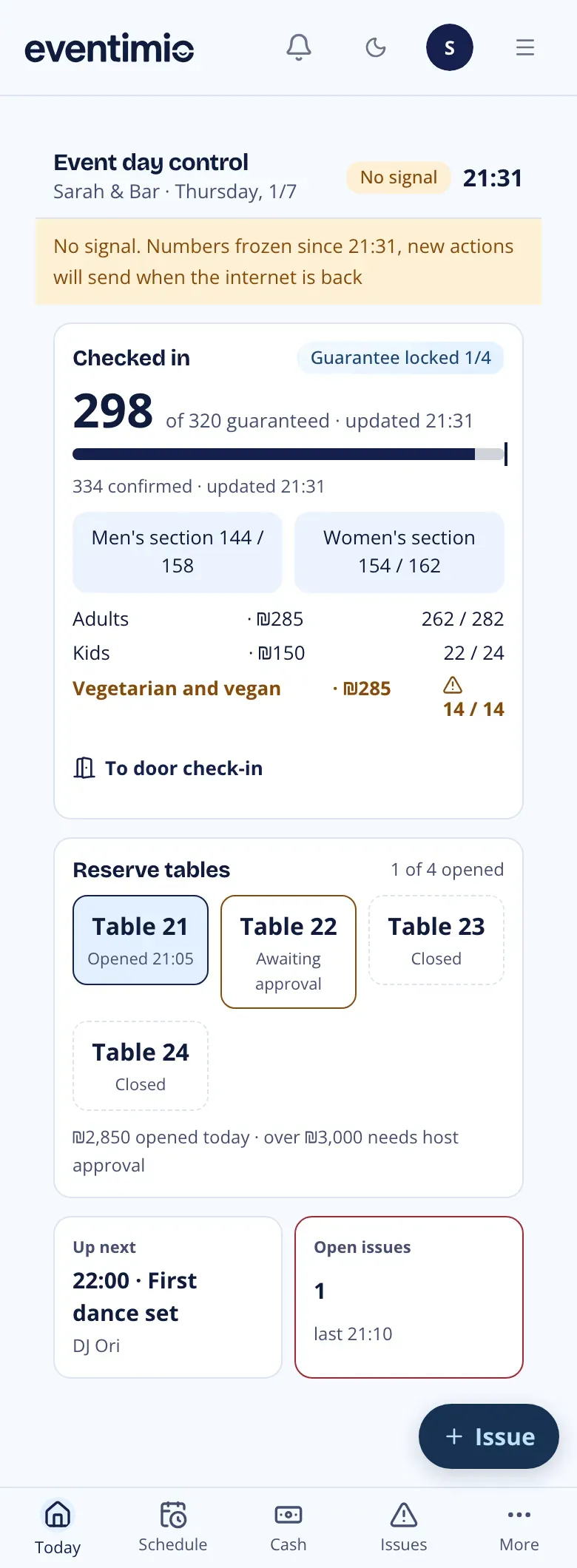
Venues often have poor reception, so the phone view keeps working without it. Payments, issues and reserve tables are saved on the phone and sent when the signal returns. The numbers stay at the last update, with its time shown. Sending a reserve table for host approval needs signal.
Approve a reserve table
Section titled “Approve a reserve table”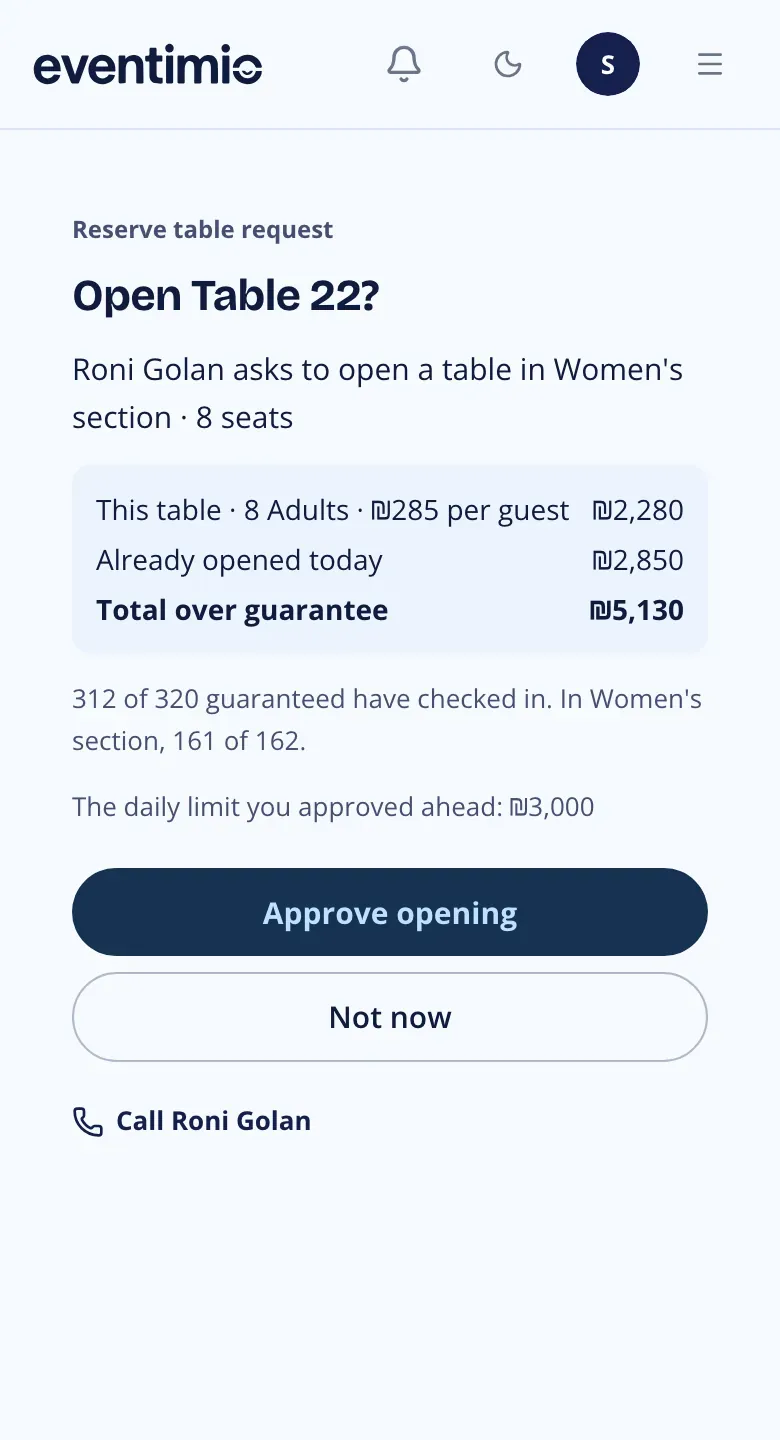
The notification or the SMS opens the request: the table and section, who asks, how many sat down and at what price, the total over the guarantee, the check-in count and your daily limit. Tap Approve opening or Not now, or call the coordinator first. If another host has already answered, the page says who decided.
The morning after
Section titled “The morning after”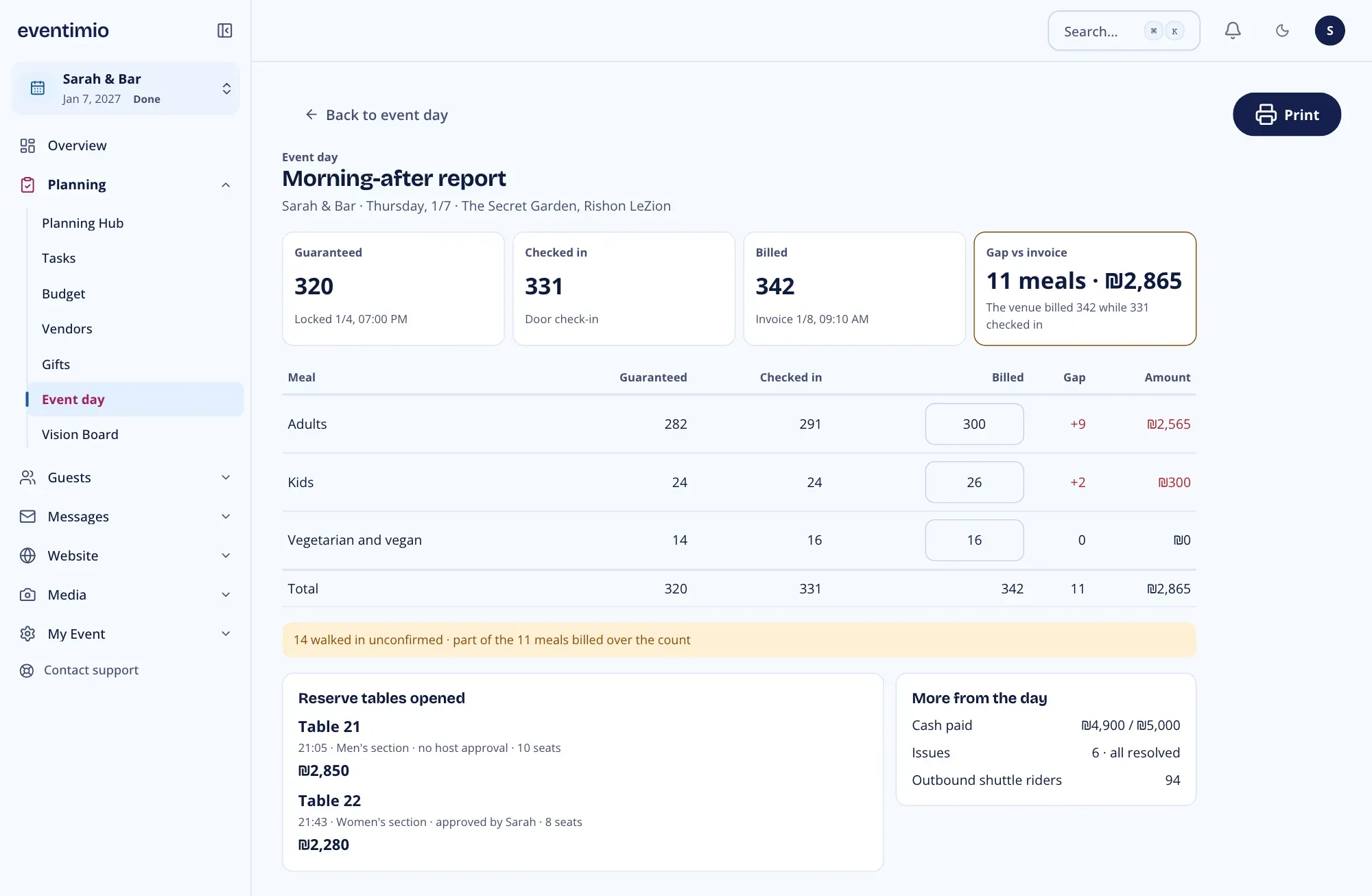
Open the Morning-after report from the More tab of the phone view. It compares, per meal, what was guaranteed, who checked in and what the venue billed:
- Type the venue’s billed count for each meal in Billed and click Save billed.
- The report shows the Gap vs invoice in meals and in ₪, and how many walked in unconfirmed.
Below the table: the Reserve tables opened, each with its time, section, seats, amount and who approved it, and More from the day: cash paid against the envelope, issues, and shuttle riders when the event has shuttles.
Print prints the report, or saves it as a PDF from the print dialog, ready for the conversation with the venue.
How are meals counted at the door? Check-in doesn’t ask for a meal. Guests whose dietary notes say vegetarian or vegan count as Vegetarian and vegan, and the rest as Adults. People seated at a reserve table count under the meal picked when it was opened.
Can I change the guarantee after it locks? Yes, with Reopen until the event day, as long as the event day hasn’t started.
What if two hosts answer the same request? The first answer counts. The other host sees who already decided.
Does the coordinator see our budget? No. The coordinator role has no access to the budget, payments, messages or billing.