
Page Builder
Your event deserves a beautiful website. Build one without writing a single line of code — just pick sections, edit inline, and publish.
Your Event Pages
Section titled “Your Event Pages”Manage all your event pages from one screen. See what’s published, what’s still in draft, and jump straight into the editor.
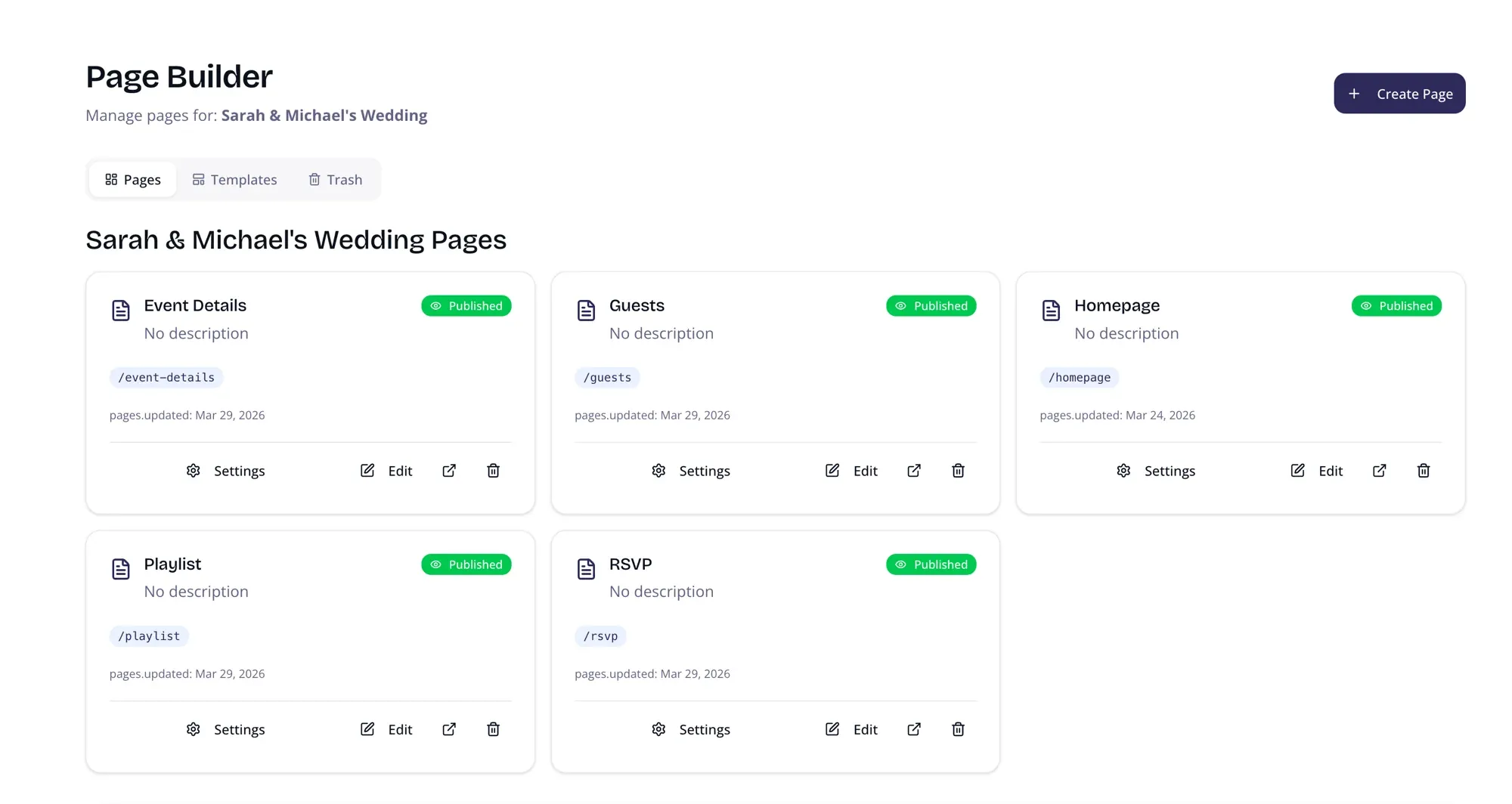
Each event can have multiple pages (Home, RSVP, Gallery, etc.).
- Published — visible to your guests
- Draft — saved but not yet public
- Private — password-protected; only guests with the password can view it
Click Create Page to add a new page from a template, or click any existing page to open the editor.
Choosing a Template
Section titled “Choosing a Template”When creating a new page, pick a starting point:
- Blank Page — start from scratch
- Wedding templates — hero section, couple bio, schedule, venue, RSVP, registry, and more
- Gallery, FAQ, Travel — ready-made sections you can fill in and publish right away
Templates pre-fill sensible defaults so you’re never staring at an empty page.
The Editor
Section titled “The Editor”The editor has two panels side by side:
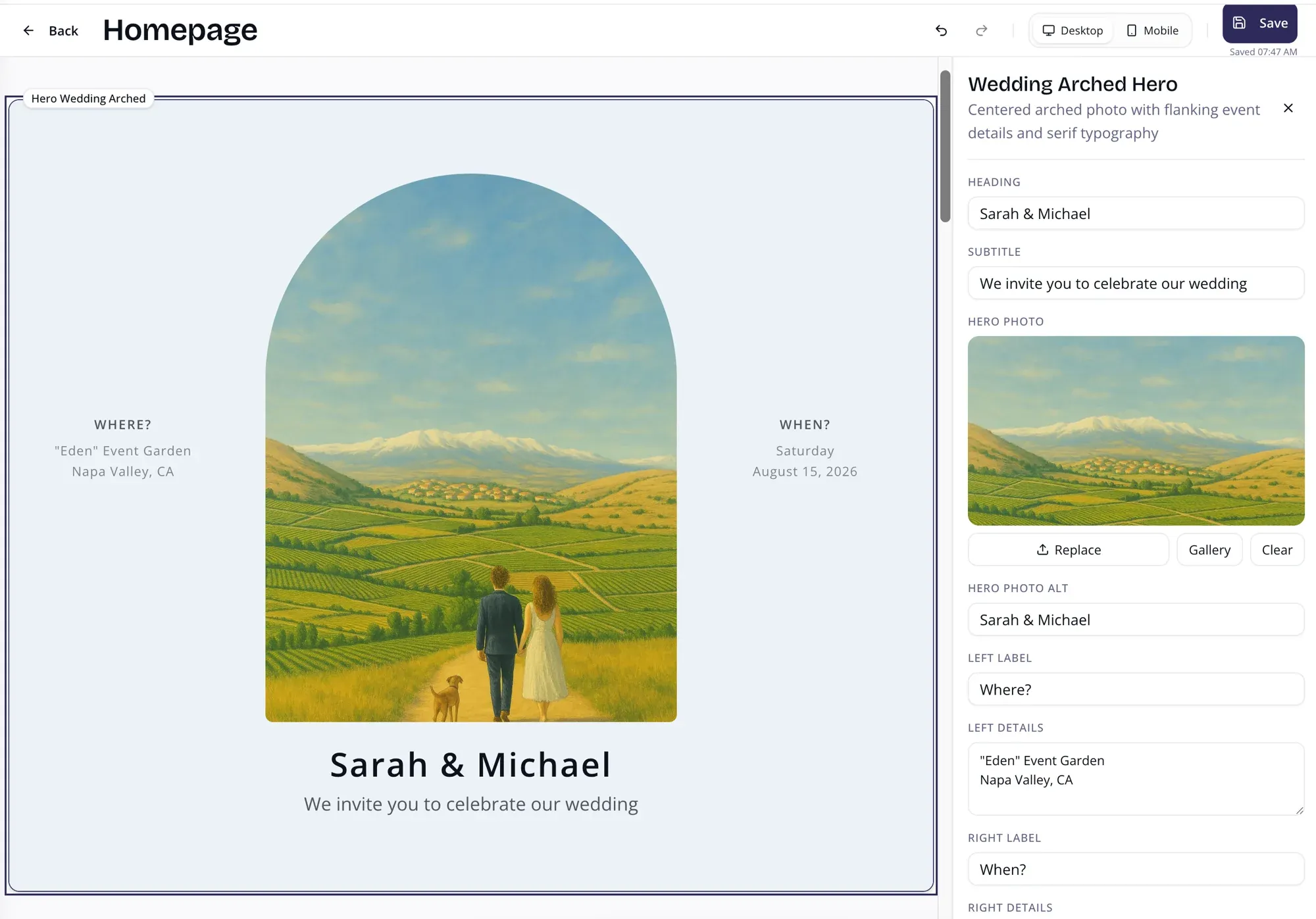
- Canvas (left) — a live preview of your page as your guests will see it
- Properties panel (right) — fields to edit the selected section’s content
Click any section on the canvas to select it and see its fields in the panel. Changes are saved automatically — you’ll see a brief “Saving…” indicator at the top.
Adding Sections
Section titled “Adding Sections”Click the + button between any two sections (or at the bottom of the page) to open the section picker. Choose from categories like:
- Hero — full-width banner with your names, date, and a hero photo
- About — couple biography with portrait photos
- Schedule — day-of timeline with repeating time slots
- Venue — location details with a map placeholder
- Gallery — photo grid linking to your full gallery
- RSVP — call-to-action linking to the RSVP form
- Registry — gift registry section with an external link
- FAQ — accordion-style frequently asked questions
- Travel — hotel and transportation information
- Testimonials, Guestbook, Wedding Party — and more
Editing Content
Section titled “Editing Content”Select a section on the canvas to edit its fields in the properties panel:
- Text fields — type directly to update headings, body copy, labels, and captions
- Image fields — click to upload a new photo or paste an image URL
- Date / time fields — pick a date or type a time
- Colour fields — choose an accent colour for buttons and highlights
- Links — add a URL for buttons and CTAs
All changes auto-save within a second. Use Ctrl+Z (or ⌘Z on Mac) to undo and Ctrl+Y to redo.
Repeating Items (Timelines, FAQs, etc.)
Section titled “Repeating Items (Timelines, FAQs, etc.)”Some sections contain a list of repeating items — for example the day-of schedule or an FAQ list. In the properties panel you can:
- Add a row — click the + button below the list
- Remove a row — click the trash icon next to any item
- Reorder rows — drag the handle on the left to rearrange
Reordering Sections
Section titled “Reordering Sections”Drag any section up or down on the canvas using the grab handle that appears when you hover over it. The order updates live and saves automatically.
Deleting a Section
Section titled “Deleting a Section”Hover over a section on the canvas and click the ⋮ menu, then choose Delete. Deleted sections are removed immediately (you can undo with Ctrl+Z before navigating away).
Publishing Your Page
Section titled “Publishing Your Page”Pages start as drafts. When you’re happy with the content:
- Open the page settings (gear icon at the top right of the editor).
- Change the status from Draft to Published.
- Copy the link and share it with your guests.
To make a page password-protected, set the status to Private and enter a password. Guests will be asked for the password before they can view the page.
Page Settings
Section titled “Page Settings”Click the gear icon to edit:
- Page title — shown in the browser tab and search results
- URL slug — the part of the address after your event domain (e.g.
/home,/schedule) - Meta description — a short summary shown in search results and link previews
- Status — Draft, Published, or Private
Page Layout
Section titled “Page Layout”- Page list — grid of all your pages with status badges and quick actions
- Editor — split view with the canvas on the left and the properties panel on the right
On smaller screens the properties panel slides in as a drawer over the canvas.